
Using Theme to supercharge React Projects : A Quick Guide

Let’s talk theme files—the secret sauce to keep your React project’s styling clean, scalable, and, well, just plain fun. Imagine this: you’re neck-deep in a React app, and your styling is scattered across components. One tweak to your color palette, and you’re knee-deep in dozens of CSS changes. Enter the magic of theme files. They not only save you from this chaos but supercharge your workflow with flexibility, consistency, and ease.

But why should you care about using a theme file for styling in React? Here’s the thing: it’s not just about keeping your code neat—it’s about creating a scalable system where tweaking one line in a theme file can change the look of your entire app. It’s like being the architect of a universe, where every component dances to the tune of your style variables.

Why Use a Theme File?

To be honest, building an app isn’t just about code; it’s about design. You want a sharp, clean interface. But what happens when your app grows and you need to make global changes? Hunting down individual styles is a nightmare. Enter the theme file—a single source of truth for all your styling needs.

Think of it as the control center for your app’s appearance. You define variables like colors, fonts, margins, and more in a centralized file. Want to update the entire app’s primary color? Change one variable. Done. It’s that simple.

Let’s build a tiny project that shows how to create and use a theme file to style React components. In this example, we’ll show how to define a theme file and use it to control the styling of your components like a boss.

  • Setting Up the Theme File

First, let’s create a theme file. In your project, make a theme.js file that looks something like this:

// theme.js
export const theme = {
  colors: {
    primary: '#3498db',
    secondary: '#2ecc71',
    background: '#f5f5f5',
    text: '#333333',
  },
  fontSizes: {
    small: '12px',
    medium: '16px',
    large: '24px',
  },
};

This theme file is your styling power station. You control everything from colors to fonts here.

  • Using the Theme in a Styled Component

Now, let’s use this theme in a React component using styled-components:

// MyButton.js
import styled from 'styled-components';
import { theme } from './theme';

const Button = styled.button`
  background-color: ${theme.colors.primary};
  color: ${theme.colors.text};
  padding: 10px 20px;
  font-size: ${theme.fontSizes.medium};
  border: none;
  border-radius: 5px;
  cursor: pointer;

  &:hover {
    background-color: ${theme.colors.secondary};
  }
`;

export default Button;

our button now responds to the colors and font sizes from the theme file. Want to make it a little edgier? Change the variables in your theme.js file and watch your app transform.

  • Using the Component

Finally, let’s use this component in your app:

// App.js
import React from 'react';
import Button from './MyButton';

function App() {
  return (
    <div style={{ backgroundColor: '#f5f5f5', padding: '20px' }}>
      <h1>Styled with Theme Files!</h1>
      <Button>Click Me</Button>
    </div>
  );
}

export default App;

Now, your app pulls its styling from the theme file. Update the theme, and everything updates like magic. Consistency? Check. Flexibility? You got it.

Final thoughts

So, why go through the hassle of using theme files? Because it’s not a hassle—it’s freedom. As your app scales, having a single place to manage your style variables makes development faster, more fun, and way less stressful. Plus, your app will thank you for the consistent, polished look.

Ready to try it out? Go ahead, give theme files a whirl, and watch your React project take styling to the next level!
Introduction to most commonly used React Hooks

React Hooks are functions that allow you to use state and other React features without writing a class. Introduced in React 16.8, they provide a powerful and simpler way to manage state, handle side effects, and reuse logic across components.

In this article, we’ll dive into the most commonly used hooks such as : useState, useEffect, useContext, useReducer, and useRef. We’ll also walk through how to create a custom hook with an example for managing form data, which is useful when sending data to an API.

  • useState – Managing State in Functional Components
    • The useState hook is the simplest way to manage state in a functional component. It allows you to add state variables to your component, and its syntax is straightforward:
import React, { useState } from 'react';

function Counter() {
  const [count, setCount] = useState(0);

  return (
    <div>
      <p>You clicked {count} times</p>
      <button onClick={() => setCount(count + 1)}>Click me</button>
    </div>
  );
}

In this example, useState initializes count to 0, and setCount is used to update the state. Each time the button is clicked, the count increases by 1.

  • useEffect – Handling Side Effects
    • useEffect allows you to perform side effects in your components, such as fetching data, updating the DOM, or setting up subscriptions.
    • useEffect allows mainly the following life cycle methods to be achieved
      • componentDidUpdate
      • componentDidMount
      • componentWillUnmount
import React, { useState, useEffect } from 'react';

function Timer() {
  const [seconds, setSeconds] = useState(0);

  useEffect(() => {
    const interval = setInterval(() => {
      setSeconds(prevSeconds => prevSeconds + 1);
    }, 1000);

    return () => clearInterval(interval); // Cleanup on component unmount
  }, []);

  return <div>Timer: {seconds} seconds</div>;
}

Here, useEffect sets up a timer that updates every second. The cleanup function inside useEffect ensures that the interval is cleared when the component unmounts.

  • useContext – Sharing State Between Components
    • useContext is used to share state across components without having to pass props manually at every level. It’s often used with the React Context API.
import React, { useContext } from 'react';

const ThemeContext = React.createContext('light');

function ThemedButton() {
  const theme = useContext(ThemeContext);

  return <button className={theme}>I'm a {theme} themed button</button>;
}

function App() {
  return (
    <ThemeContext.Provider value="dark">
      <ThemedButton />
    </ThemeContext.Provider>
  );
}

In this example, ThemedButton uses useContext to consume the theme value from ThemeContext. The theme is provided by the ThemeContext.Provider in the App component.

  • useReducer – Complex State Logic
    • useReducer is useful when you have complex state logic that involves multiple sub-values or when the next state depends on the previous one.
import React, { useReducer } from 'react';

const initialState = { count: 0 };

function reducer(state, action) {
  switch (action.type) {
    case 'increment':
      return { count: state.count + 1 };
    case 'decrement':
      return { count: state.count - 1 };
    default:
      throw new Error();
  }
}

function Counter() {
  const [state, dispatch] = useReducer(reducer, initialState);

  return (
    <div>
      <p>Count: {state.count}</p>
      <button onClick={() => dispatch({ type: 'increment' })}>+</button>
      <button onClick={() => dispatch({ type: 'decrement' })}>-</button>
    </div>
  );
}

Here, useReducer is used to manage the count state with more complex logic than useState. The reducer function handles actions to update the state

  • useRef – Accessing DOM Elements and Persisting Values
    • useRef provides a way to access DOM elements directly or persist values across renders without causing re-renders.
import React, { useRef } from 'react';

function TextInputWithFocusButton() {
  const inputRef = useRef(null);

  const handleClick = () => {
    inputRef.current.focus();
  };

  return (
    <div>
      <input ref={inputRef} type="text" />
      <button onClick={handleClick}>Focus the input</button>
    </div>
  );
}

In this example, useRef is used to create a reference to the input element, allowing us to focus it when the button is clicked.

  • Custom Hook for Form Data
    • Custom hooks allow you to extract and reuse logic across multiple components. Let’s create a custom hook to manage form data, which we’ll send to an API.
import { useState } from 'react';

function useFormData(initialValues) {
  const [formData, setFormData] = useState(initialValues);

  const handleChange = (event) => {
    const { name, value } = event.target;
    setFormData(prevData => ({
      ...prevData,
      [name]: value
    }));
  };

  const resetForm = () => {
    setFormData(initialValues);
  };

  return { formData, handleChange, resetForm };
}

function ContactForm() {
  const { formData, handleChange, resetForm } = useFormData({ name: '', email: '' });

  const handleSubmit = async (event) => {
    event.preventDefault();
    // Here, you would typically send formData to an API
    console.log(formData);
    resetForm();
  };

  return (
    <form onSubmit={handleSubmit}>
      <label>
        Name:
        <input type="text" name="name" value={formData.name} onChange={handleChange} />
      </label>
      <br />
      <label>
        Email:
        <input type="email" name="email" value={formData.email} onChange={handleChange} />
      </label>
      <br />
      <button type="submit">Submit</button>
    </form>
  );
}

This custom hook useFormData manages form state, handling input changes and resetting the form. It’s reusable and keeps your component logic clean.

React Hooks provide a powerful and intuitive way to manage state, handle side effects, and encapsulate reusable logic in your components. By understanding and using hooks like useState, useEffect, useContext, useReducer, and useRef, you can write more concise and maintainable code.

Understanding Redux: The Power of State Management in React Applications

State management is a crucial aspect of building scalable and maintainable applications. In React, managing state can become complex as your application grows. Redux is a powerful library that helps manage state efficiently and predictably. In this article, we will explore the advantages of a state management system, introduce Redux, discuss its pros and cons, and provide a real-world example of setting up and using Redux in a React app for user authentication.

Why Do We Need a State Management System?

As our application grows, managing state across various components becomes challenging. A state management system helps by:

  • Centralizing State: It provides a single source of truth for your application’s state.
  • Predictable State Updates: State updates are predictable due to strict rules on how state changes.
  • Easier Debugging: Tools like Redux DevTools make it easier to track state changes and debug issues.
  • Improved Maintainability: Centralized state management improves code organization and maintainability.

Introduction to Redux

Redux is a popular state management library for JavaScript applications, often used with React. It follows three core principles:

  • Single Source of Truth: The global state of your application is stored in an object tree within a single store.
  • State is Read-Only: The only way to change the state is by dispatching an action, an object that describes what happened.
  • Changes are Made with Pure Functions: To specify how the state tree is transformed by actions, you write pure reducers.

Advantages of Redux

  • Predictability: With a single source of truth and pure functions, state changes are predictable and easy to debug.
  • Maintainability: Clear separation of concerns makes the codebase easier to maintain.
  • Developer Tools: Redux DevTools provide powerful tools for debugging and time-traveling through state changes.
  • Community and Ecosystem: Redux has a large community and a rich ecosystem of middleware and extensions.

Disadvantages of Redux

  • Boilerplate Code: Setting up Redux requires writing a significant amount of boilerplate code.
  • Learning Curve: Understanding Redux concepts like actions, reducers, and middleware can be challenging for beginners.
  • Complexity for Small Apps: For small applications, Redux might be overkill and add unnecessary complexity.

Setting Up Redux in a React Application for User Authentication

Let’s walk through setting up Redux in a React application with a real-world example: a user authentication app.

  • Install Redux and React-Redux
npm install redux react-redux
  • Create Redux Store

Create a store.js file to set up the Redux store:

import { createStore } from 'redux';
import rootReducer from './reducers';

const store = createStore(rootReducer);

export default store;
  • Create Reducers

Create a reducers folder with an index.js file and an auth.js file:

‘reducers/index.js’:

import { combineReducers } from 'redux';
import authReducer from './auth';

const rootReducer = combineReducers({
  auth: authReducer
});

export default rootReducer;

‘reducers/auth.js’:

const initialState = {
  isAuthenticated: false,
  user: null,
};

const authReducer = (state = initialState, action) => {
  switch (action.type) {
    case 'LOGIN_SUCCESS':
      return {
        ...state,
        isAuthenticated: true,
        user: action.payload,
      };
    case 'LOGOUT':
      return {
        ...state,
        isAuthenticated: false,
        user: null,
      };
    default:
      return state;
  }
};

export default authReducer;
  • Create Actions

Create an 'actions' folder with' authActions.js':

export const loginSuccess = (user) => ({
  type: 'LOGIN_SUCCESS',
  payload: user,
});

export const logout = () => ({
  type: 'LOGOUT',
});
  • Setup Provider

Wrap your app with the Provider component from 'react-redux in index.js':

import React from 'react';
import ReactDOM from 'react-dom';
import { Provider } from 'react-redux';
import store from './store';
import App from './App';

ReactDOM.render(
  <Provider store={store}>
    <App />
  </Provider>,
  document.getElementById('root')
);
  • Connect Components

Use the 'connect' function to connect your components to the Redux store. Create an 'Auth.js' component:

import React from 'react';
import { connect } from 'react-redux';
import { loginSuccess, logout } from './actions/authActions';

function Auth({ isAuthenticated, user, loginSuccess, logout }) {
  const handleLogin = () => {
    const user = { name: 'John Doe', email: 'john.doe@example.com' };
    loginSuccess(user);
  };

  const handleLogout = () => {
    logout();
  };

  return (
    <div>
      {isAuthenticated ? (
        <div>
          <h1>Welcome, {user.name}</h1>
          <button onClick={handleLogout}>Logout</button>
        </div>
      ) : (
        <div>
          <h1>Please log in</h1>
          <button onClick={handleLogin}>Login</button>
        </div>
      )}
    </div>
  );
}

const mapStateToProps = (state) => ({
  isAuthenticated: state.auth.isAuthenticated,
  user: state.auth.user,
});

const mapDispatchToProps = {
  loginSuccess,
  logout,
};

export default connect(mapStateToProps, mapDispatchToProps)(Auth);
  • Create App Component

Finally, create an 'App.js' file:

import React from 'react';
import Auth from './Auth';

function App() {
  return (
    <div className="App">
      <Auth />
    </div>
  );
}

export default App;

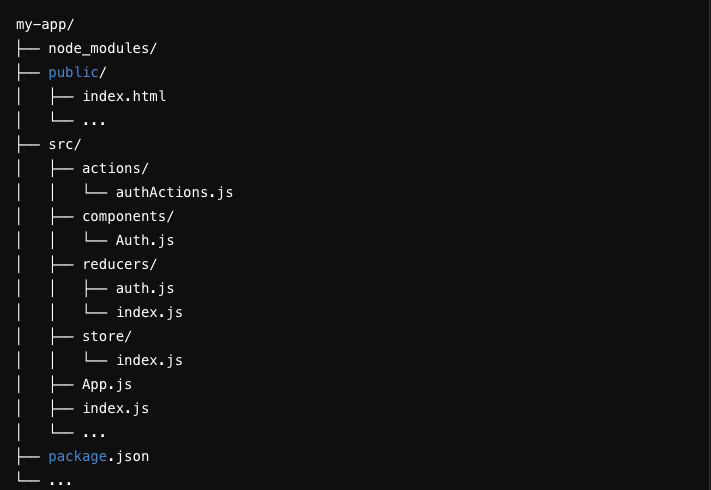
Folder Structure

Conclusion

Redux is a powerful state management tool that can significantly improve the predictability, maintainability, and scalability of your React applications. While it comes with a learning curve and some boilerplate, its advantages often outweigh the drawbacks, especially in large applications. By following the step-by-step guide provided, you can set up Redux in your React app and start managing state more effectively, as demonstrated with our user authentication example.

Solving jQuery Version Conflict in the Same Project

In a recent project I was leading, we faced an interesting challenge that I believe is worth sharing. Our legacy codebase heavily relied on jQuery 1.1.8, but we needed to integrate Google Maps into our application, which required a newer version of jQuery (at least 1.2). Rewriting or upgrading the entire application to use a newer jQuery version was not feasible due to time constraints and potential risk of breaking existing functionality. Here’s how we managed to use two different versions of jQuery on the same page without any conflicts.

The Problem

Our existing application used jQuery 1.1.8, and changing this version was not an option due to the extensive usage throughout the codebase. However, the Google Maps API required at least jQuery 1.2. This version incompatibility posed a significant challenge, as loading multiple versions of jQuery can lead to conflicts.

The Solution

The solution involved using jQuery’s noConflict mode to manage multiple versions on the same page. Here’s a step-by-step guide on how we implemented this.

  • Load the Older Version of jQuery

First, we ensured that the older version of jQuery (1.1.8) was loaded as usual for our existing application functionality.

<!DOCTYPE html>
<html>
<head>
  <title>Multiple jQuery Versions Example</title>
  <!-- Load the older version of jQuery (1.1.8) -->
  <script src="path/to/jquery-1.1.8.min.js"></script>
</head>
<body>
  <!-- Our existing code and scripts that depends on jQuery 1.1.8 -->

  <!-- Google Maps section -->
  <div id="map-canvas" style="width: 100%; height: 400px;"></div>

  <!-- Load the newer version of jQuery -->
  
  <!-- Load the Google Maps API -->
  <script src="https://maps.googleapis.com/maps/api/js?key=<OUR API KEY>"></script>
</body>
</html>
  • Load the Newer Version of jQuery

Next, we loaded the newer version of jQuery required for the Google Maps API. We used the noConflict method to ensure it did not interfere with the older version.

<!-- Load the newer version of jQuery -->
<script src="https://ajax.googleapis.com/ajax/libs/jquery/1.12.4/jquery.min.js"></script>
<script>
  var jQueryNew = $.noConflict(true);
</script>

The true parameter in the noConflict method call ensures that the new jQuery version is completely isolated, preventing it from overriding the older version.

  • Initialize Google Maps Using the Newer jQuery Version

We then wrote the Google Maps initialization code using the new jQuery version (jQueryNew).

<script>
  jQueryNew(document).ready(function($) {
    function initialize() {
      var mapOptions = {
        zoom: 8,
        center: new google.maps.LatLng(-34.397, 150.644)
      };
      var map = new google.maps.Map(document.getElementById('map-canvas'), mapOptions);
    }
    
    google.maps.event.addDomListener(window, 'load', initialize);
  });
</script>

Complete solution looked like

<!DOCTYPE html>
<html>
<head>
  <title>Multiple jQuery Versions Example</title>
  <!-- Load the older version of jQuery (1.1.8) -->
  <script src="path/to/jquery-1.1.8.min.js"></script>
</head>
<body>
  <!-- Your existing content that depends on jQuery 1.1.8 -->

  <!-- Google Maps section -->
  <div id="map-canvas" style="width: 100%; height: 400px;"></div>

  <!-- Load the newer version of jQuery -->
  <script src="https://ajax.googleapis.com/ajax/libs/jquery/1.12.4/jquery.min.js"></script>
  <script>
    var jQueryNew = $.noConflict(true);

    jQueryNew(document).ready(function($) {
      function initialize() {
        var mapOptions = {
          zoom: 8,
          center: new google.maps.LatLng(-34.397, 150.644)
        };
        var map = new google.maps.Map(document.getElementById('map-canvas'), mapOptions);
      }
      
      google.maps.event.addDomListener(window, 'load', initialize);
    });
  </script>

  <!-- Load the Google Maps API -->
  <script src="https://maps.googleapis.com/maps/api/js?key=YOUR_API_KEY"></script>
</body>
</html>

Conclusion

By using jQuery’s noConflict mode, we successfully integrated Google Maps into our project without upgrading the entire codebase to a newer jQuery version. This approach allowed us to meet the project requirements while minimizing risks and maintaining the stability of our existing application.

I hope this solution helps others facing similar challenges. If you have any questions or need further clarification, feel free to leave a comment!

ReactJS Class Components vs Functional Components – a quick tour

Recently my team was tasked with a project that was developed in ReactJS to be modernized and made more performance optimized. The project was developed using a mix of class components and functional components, without any state management nor any performance considerations for large amounts of data payloads from server. We decided to move the project from class components to functional components, add redux for state management and bring in several performance optimizations. When working with the project I realized that the original development was done without understanding subtle difference and similarities between class components and functional components as well as about the usage of life cycle hooks.

Hence, I thought of sharing some key and fundamental difference between the two so that this could be used as a reference in the future.

  • Component Definition

Functional Components

function MyComponent(props) {
  return <div>Hello, {props.name}!</div>;
}

Class Components

import React, { Component } from 'react';

class MyComponent extends Component {
  render() {
    return <div>Hello, {this.props.name}!</div>;
  }
}
  • State Management

Functional Component with ‘useState

import React, { useState } from 'react';

function Counter() {
  const [count, setCount] = useState(0);

  return (
    <div>
      <p>You clicked {count} times</p>
      <button onClick={() => setCount(count + 1)}>
        Click me
      </button>
    </div>
  );
}

Class Component with ‘this.state

import React, { Component } from 'react';

class Counter extends Component {
  constructor(props) {
    super(props);
    this.state = { count: 0 };
  }

  render() {
    return (
      <div>
        <p>You clicked {this.state.count} times</p>
        <button onClick={() => this.setState({ count: this.state.count + 1 })}>
          Click me
        </button>
      </div>
    );
  }
}
  • Lifecycle Methods

Functional Component with ‘useEffect

import React, { useEffect } from 'react';

function Timer() {
  useEffect(() => {
    const timer = setInterval(() => {
      console.log('Tick');
    }, 1000);

    return () => clearInterval(timer);
  }, []);

  return <div>Check the console</div>;
}

Class Component Lifecycle Methods

import React, { Component } from 'react';

class Timer extends Component {
  componentDidMount() {
    this.timer = setInterval(() => {
      console.log('Tick');
    }, 1000);
  }

  componentWillUnmount() {
    clearInterval(this.timer);
  }

  render() {
    return <div>Check the console</div>;
  }
}
  • Handling Events

Functional Component

import React from 'react';

function ClickHandler() {
  const handleClick = () => {
    console.log('Button clicked');
  };

  return <button onClick={handleClick}>Click me</button>;
}

Class Component

import React, { Component } from 'react';

class ClickHandler extends Component {
  handleClick = () => {
    console.log('Button clicked');
  };

  render() {
    return <button onClick={this.handleClick}>Click me</button>;
  }
}
  • Props and State Comparison

Functional Component

function Greeting(props) {
  return <h1>Hello, {props.name}</h1>;
}

function ParentComponent() {
  const [name, setName] = useState('World');

  return (
    <div>
      <Greeting name={name} />
      <button onClick={() => setName('React')}>Change Name</button>
    </div>
  );
}

Class Component

import React, { Component } from 'react';

class Greeting extends Component {
  render() {
    return <h1>Hello, {this.props.name}</h1>;
  }
}

class ParentComponent extends Component {
  constructor(props) {
    super(props);
    this.state = { name: 'World' };
  }

  render() {
    return (
      <div>
        <Greeting name={this.state.name} />
        <button onClick={() => this.setState({ name: 'React' })}>Change Name</button>
      </div>
    );
  }
}
  • Context API

Functional Component with ‘useContext

import React, { createContext, useContext } from 'react';

const MyContext = createContext();

function ChildComponent() {
  const value = useContext(MyContext);
  return <div>{value}</div>;
}

function ParentComponent() {
  return (
    <MyContext.Provider value="Hello from Context">
      <ChildComponent />
    </MyContext.Provider>
  );
}

Class Component with ‘Context.Consumer

import React, { Component, createContext } from 'react';

const MyContext = createContext();

class ChildComponent extends Component {
  render() {
    return (
      <MyContext.Consumer>
        {value => <div>{value}</div>}
      </MyContext.Consumer>
    );
  }
}

class ParentComponent extends Component {
  render() {
    return (
      <MyContext.Provider value="Hello from Context">
        <ChildComponent />
      </MyContext.Provider>
    );
  }
}
  • Higher-Order Components (HOCs)

Functional Component (HOC)

import React from 'react';

function withLogging(WrappedComponent) {
  return function(props) {
    console.log('Component rendered with props:', props);
    return <WrappedComponent {...props} />;
  };
}

function MyComponent(props) {
  return <div>{props.message}</div>;
}

const MyComponentWithLogging = withLogging(MyComponent);

Class Component (HOC)

import React, { Component } from 'react';

function withLogging(WrappedComponent) {
  return class extends Component {
    componentDidMount() {
      console.log('Component rendered with props:', this.props);
    }

    render() {
      return <WrappedComponent {...this.props} />;
    }
  };
}

class MyComponent extends Component {
  render() {
    return <div>{this.props.message}</div>;
  }
}

const MyComponentWithLogging = withLogging(MyComponent);

Conclusion

  • State Management: Use useState in functional components and this.state in class components.
  • Side Effects: Use useEffect in functional components and lifecycle methods (componentDidMount, componentWillUnmount, etc.) in class components.
  • Event Handling: Both use similar syntax, but class components use this to refer to class methods.
  • Context API: Use useContext in functional components and Context.Consumer in class components.
  • HOCs: Higher-Order Components work similarly in both, but syntax differs slightly.

In conclusion, understanding the above key differences and similarities will help to navigate and work between functional and class components effectively.