Using Theme to supercharge React Projects : A Quick Guide

Let’s talk theme files—the secret sauce to keep your React project’s styling clean, scalable, and, well, just plain fun. Imagine this: you’re neck-deep in a React app, and your styling is scattered across components. One tweak to your color palette, and you’re knee-deep in dozens of CSS changes. Enter the magic of theme files. They not only save you from this chaos but supercharge your workflow with flexibility, consistency, and ease.

But why should you care about using a theme file for styling in React? Here’s the thing: it’s not just about keeping your code neat—it’s about creating a scalable system where tweaking one line in a theme file can change the look of your entire app. It’s like being the architect of a universe, where every component dances to the tune of your style variables.

Why Use a Theme File?

To be honest, building an app isn’t just about code; it’s about design. You want a sharp, clean interface. But what happens when your app grows and you need to make global changes? Hunting down individual styles is a nightmare. Enter the theme file—a single source of truth for all your styling needs.

Think of it as the control center for your app’s appearance. You define variables like colors, fonts, margins, and more in a centralized file. Want to update the entire app’s primary color? Change one variable. Done. It’s that simple.

Let’s build a tiny project that shows how to create and use a theme file to style React components. In this example, we’ll show how to define a theme file and use it to control the styling of your components like a boss.

  • Setting Up the Theme File

First, let’s create a theme file. In your project, make a theme.js file that looks something like this:

// theme.js
export const theme = {
  colors: {
    primary: '#3498db',
    secondary: '#2ecc71',
    background: '#f5f5f5',
    text: '#333333',
  },
  fontSizes: {
    small: '12px',
    medium: '16px',
    large: '24px',
  },
};

This theme file is your styling power station. You control everything from colors to fonts here.

  • Using the Theme in a Styled Component

Now, let’s use this theme in a React component using styled-components:

// MyButton.js
import styled from 'styled-components';
import { theme } from './theme';

const Button = styled.button`
  background-color: ${theme.colors.primary};
  color: ${theme.colors.text};
  padding: 10px 20px;
  font-size: ${theme.fontSizes.medium};
  border: none;
  border-radius: 5px;
  cursor: pointer;

  &:hover {
    background-color: ${theme.colors.secondary};
  }
`;

export default Button;

our button now responds to the colors and font sizes from the theme file. Want to make it a little edgier? Change the variables in your theme.js file and watch your app transform.

  • Using the Component

Finally, let’s use this component in your app:

// App.js
import React from 'react';
import Button from './MyButton';

function App() {
  return (
    <div style={{ backgroundColor: '#f5f5f5', padding: '20px' }}>
      <h1>Styled with Theme Files!</h1>
      <Button>Click Me</Button>
    </div>
  );
}

export default App;

Now, your app pulls its styling from the theme file. Update the theme, and everything updates like magic. Consistency? Check. Flexibility? You got it.

Final thoughts

So, why go through the hassle of using theme files? Because it’s not a hassle—it’s freedom. As your app scales, having a single place to manage your style variables makes development faster, more fun, and way less stressful. Plus, your app will thank you for the consistent, polished look.

Ready to try it out? Go ahead, give theme files a whirl, and watch your React project take styling to the next level!
Revamping Your Development Process: Elevating QA, UAT, and Production with Speed and Precision

In my experience working with or consulting engineering teams on supercharging their development, QA and release processes, I have seen that most places in trying to balance speed and quality has led to immense mental stress and sleepless nights to engineering teams. Not only that , in most cases you end up shipping half baked or crappy code to production.

You do need to ship features out the door quickly, but you also need to ensure that we follow a process that allows us to ship code safely. There should be very little “Oh shoot, this should have been caught on QA or UAT, not while the users are using and their customer is in front of them”. Here’s a deep dive into how you can sharpen your process while keeping the madness under control.

  • Branching Strategy: Keep It Clean, Keep It Smart

Let’s start with branching—a no-brainer, but often done wrong. If your DEV, QA, and UAT environments aren’t in sync, you’re playing with fire. Here’s the fix:

  1. DEV Branch: Think of it as the playground where things can break. Merge feature branches into DEV, but don’t push untested code past this point. DEV should be active but treated with caution.
  2. QA Branch: As soon as DEV has something worth testing, promote it to the QA branch. This branch is sacred ground for the QA team to test without distractions. Don’t cut corners by pushing to UAT or production before it’s stable.
  3. UAT Branch: The UAT branch is where your end users get involved. Ensure this branch is almost identical to production so that any last-minute issues can be caught and resolved before going live. If something goes wrong here, it’s the final warning before disaster.
    • Tools that can help:
      • Gitflow: A branching model that can make all this neat and manageable.
      • Feature Toggles (via LaunchDarkly or Unleash): Allows features to be toggled on/off without deploying new code, giving you more flexibility.

A good branching and merging strategy is imperative and is the first sanity check you need to have.

  • Fixing QA Issues in Real-Time and Keeping Everything in Sync

Now that we’ve got branching down, let’s tackle what happens when things go wrong in QA (because they will). Bugs found in QA should be fixed on the QA branch—don’t touch DEV yet. Once the fix is tested, backport it to DEV to ensure the same bug doesn’t creep back in later.

  • Fix in QATest in QAMerge to DEV. No shortcuts.

Skipping this will create chaos in UAT and production. You’ll end up with different bugs in each environment, making it impossible to keep track.

  • Speeding Up QA Without Cutting Corners

QA often feels like the bottleneck, right? The devs are done, and the product team is tapping their feet impatiently while QA painstakingly goes through tests. But we can supercharge QA without compromising thoroughness.

  1. Automate Smoke Tests: Tools like Selenium, Cypress, or Playwright can automate repetitive tests so that QA doesn’t have to spend time checking basic functionality every single time. Smoke tests should run immediately after every push to the QA branch, catching major issues early.
  2. Performance Testing Early: Use tools like JMeter or Gatling to test system performance during QA, not after. This helps identify bottlenecks before you’re staring down the barrel of a UAT disaster.
  3. Create and Maintain Robust Test Data: This is a big one. Testing with half-baked or outdated data isn’t going to cut it. Use data anonymization tools like Tonic.ai or Mockaroo to generate realistic datasets that mirror production.
  4. Shift-Left Testing: QA shouldn’t be an afterthought. Developers should write unit tests for their code (think Jest, Mocha, or JUnit), and the pipeline should include integration tests (with TestCafe or Pact for API testing) early in the process.
  • Shipping to UAT Without Losing Your Mind

You’ve got stable code from QA, and it’s time to ship it to UAT. This is where customers or users do their validation, but it has to be done methodically.

  1. Mirror Production: UAT should reflect production as closely as possible. Tools like Docker or Kubernetes can help create isolated environments that are clones of production, allowing your team to test under real-world conditions.
  2. Automated Deployments: Use tools like Jenkins, CircleCI, or GitLab CI/CD to automate deployments into UAT, making the process faster, repeatable, and less error-prone.
  3. Quick Feedback Cycles: Don’t leave customers hanging with long UAT cycles. Use tools like TestRail or Zephyr to manage test cases and feedback in UAT. Make sure there’s a clear process for logging bugs and responding quickly.
  • UAT Expediency: Customers Love Speed—Give It To Them

UAT often drags because end-users aren’t testing efficiently. The key here is to give them structure and ensure they’re not just clicking around randomly:

  1. Test Case Templates: Provide your customers with a checklist or clear test cases to follow. Use tools like Cucumber for behavior-driven development (BDD), where test scenarios are written in plain English, making it easy for non-technical users to understand what they should be testing.
  2. Run Sanity Checks in Parallel: Before customers even touch the UAT environment, run automated sanity checks to ensure the system is functioning correctly (similar to the smoke tests in QA).
  3. Feedback Mechanism: Use tools like Trello or JIRA to collect user feedback quickly and efficiently. Implement a tagging system that can help prioritize critical issues versus nice-to-haves, so the UAT process doesn’t drag on forever.

You can’t have your cake and eat it too—rushing things to production without proper QA and UAT will lead to headaches down the road. By creating a clear pipeline between DEV, QA, and UAT, and keeping those environments in sync, you’ll reduce the number of bugs creeping into production.

Key Tools Recap

  • Branching: Gitflow, LaunchDarkly (feature toggles)
  • Automation: Selenium, Cypress, JMeter, Jenkins, Docker
  • Data Preparation: Tonic.ai, Mockaroo
  • Test Management: TestRail, Zephyr
  • Feedback: Trello, JIRA

Focus on testing the right way with proper tools and processes, and you’ll see smoother releases, faster UAT cycles, and a lot less hair-pulling come production time.

Introduction to most commonly used React Hooks

React Hooks are functions that allow you to use state and other React features without writing a class. Introduced in React 16.8, they provide a powerful and simpler way to manage state, handle side effects, and reuse logic across components.

In this article, we’ll dive into the most commonly used hooks such as : useState, useEffect, useContext, useReducer, and useRef. We’ll also walk through how to create a custom hook with an example for managing form data, which is useful when sending data to an API.

  • useState – Managing State in Functional Components
    • The useState hook is the simplest way to manage state in a functional component. It allows you to add state variables to your component, and its syntax is straightforward:
import React, { useState } from 'react';

function Counter() {
  const [count, setCount] = useState(0);

  return (
    <div>
      <p>You clicked {count} times</p>
      <button onClick={() => setCount(count + 1)}>Click me</button>
    </div>
  );
}

In this example, useState initializes count to 0, and setCount is used to update the state. Each time the button is clicked, the count increases by 1.

  • useEffect – Handling Side Effects
    • useEffect allows you to perform side effects in your components, such as fetching data, updating the DOM, or setting up subscriptions.
    • useEffect allows mainly the following life cycle methods to be achieved
      • componentDidUpdate
      • componentDidMount
      • componentWillUnmount
import React, { useState, useEffect } from 'react';

function Timer() {
  const [seconds, setSeconds] = useState(0);

  useEffect(() => {
    const interval = setInterval(() => {
      setSeconds(prevSeconds => prevSeconds + 1);
    }, 1000);

    return () => clearInterval(interval); // Cleanup on component unmount
  }, []);

  return <div>Timer: {seconds} seconds</div>;
}

Here, useEffect sets up a timer that updates every second. The cleanup function inside useEffect ensures that the interval is cleared when the component unmounts.

  • useContext – Sharing State Between Components
    • useContext is used to share state across components without having to pass props manually at every level. It’s often used with the React Context API.
import React, { useContext } from 'react';

const ThemeContext = React.createContext('light');

function ThemedButton() {
  const theme = useContext(ThemeContext);

  return <button className={theme}>I'm a {theme} themed button</button>;
}

function App() {
  return (
    <ThemeContext.Provider value="dark">
      <ThemedButton />
    </ThemeContext.Provider>
  );
}

In this example, ThemedButton uses useContext to consume the theme value from ThemeContext. The theme is provided by the ThemeContext.Provider in the App component.

  • useReducer – Complex State Logic
    • useReducer is useful when you have complex state logic that involves multiple sub-values or when the next state depends on the previous one.
import React, { useReducer } from 'react';

const initialState = { count: 0 };

function reducer(state, action) {
  switch (action.type) {
    case 'increment':
      return { count: state.count + 1 };
    case 'decrement':
      return { count: state.count - 1 };
    default:
      throw new Error();
  }
}

function Counter() {
  const [state, dispatch] = useReducer(reducer, initialState);

  return (
    <div>
      <p>Count: {state.count}</p>
      <button onClick={() => dispatch({ type: 'increment' })}>+</button>
      <button onClick={() => dispatch({ type: 'decrement' })}>-</button>
    </div>
  );
}

Here, useReducer is used to manage the count state with more complex logic than useState. The reducer function handles actions to update the state

  • useRef – Accessing DOM Elements and Persisting Values
    • useRef provides a way to access DOM elements directly or persist values across renders without causing re-renders.
import React, { useRef } from 'react';

function TextInputWithFocusButton() {
  const inputRef = useRef(null);

  const handleClick = () => {
    inputRef.current.focus();
  };

  return (
    <div>
      <input ref={inputRef} type="text" />
      <button onClick={handleClick}>Focus the input</button>
    </div>
  );
}

In this example, useRef is used to create a reference to the input element, allowing us to focus it when the button is clicked.

  • Custom Hook for Form Data
    • Custom hooks allow you to extract and reuse logic across multiple components. Let’s create a custom hook to manage form data, which we’ll send to an API.
import { useState } from 'react';

function useFormData(initialValues) {
  const [formData, setFormData] = useState(initialValues);

  const handleChange = (event) => {
    const { name, value } = event.target;
    setFormData(prevData => ({
      ...prevData,
      [name]: value
    }));
  };

  const resetForm = () => {
    setFormData(initialValues);
  };

  return { formData, handleChange, resetForm };
}

function ContactForm() {
  const { formData, handleChange, resetForm } = useFormData({ name: '', email: '' });

  const handleSubmit = async (event) => {
    event.preventDefault();
    // Here, you would typically send formData to an API
    console.log(formData);
    resetForm();
  };

  return (
    <form onSubmit={handleSubmit}>
      <label>
        Name:
        <input type="text" name="name" value={formData.name} onChange={handleChange} />
      </label>
      <br />
      <label>
        Email:
        <input type="email" name="email" value={formData.email} onChange={handleChange} />
      </label>
      <br />
      <button type="submit">Submit</button>
    </form>
  );
}

This custom hook useFormData manages form state, handling input changes and resetting the form. It’s reusable and keeps your component logic clean.

React Hooks provide a powerful and intuitive way to manage state, handle side effects, and encapsulate reusable logic in your components. By understanding and using hooks like useState, useEffect, useContext, useReducer, and useRef, you can write more concise and maintainable code.

Git strategy for different projects

Different organization have their own software products and engineering practices to support the development. Having a good repository management is key to having a great engineering process. However, in my experience in consulting organizations in digitalizing and adopting robust engineering practices, I have seen teams struggling to find the right repository management practice for their project or product structure. In this article I will try to provide recommended git practices for four common types of agile projects: internal projects with multiple teams, external client projects, multi-client products with different versions, and SaaS products with a single codebase used by multiple clients.

  • Internal Project with Multiple Development Teams
    • Project Characteristics:
      • Client: Single internal client.
      • Teams: Multiple development teams.
      • Release Strategy: Planned production releases, QA releases every sprint.
    • Recommended Git Practices:
      • Branching Strategy:
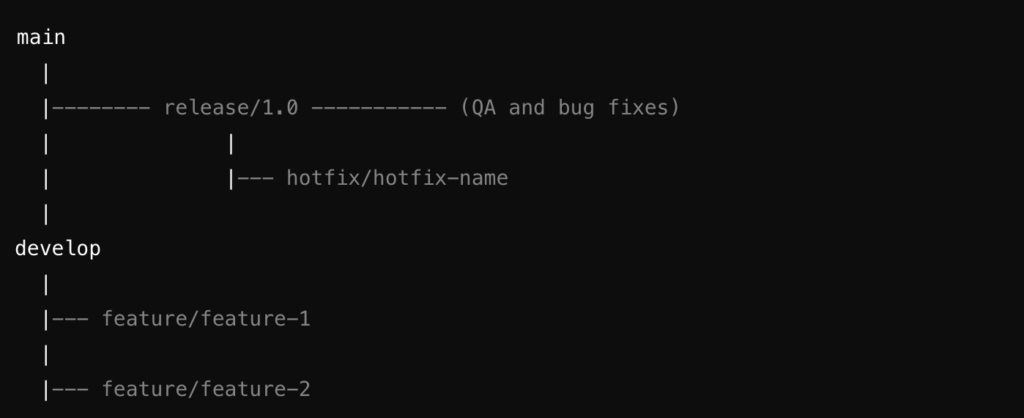
        • Main Branch: Use 'main' or master‘ as the stable branch where the latest production-ready code resides.
        • Development Branch: Create a ‘develop‘ branch where all new features, improvements, and bug fixes are merged before they are considered for production.
        • Feature Branches: Each team should work on feature branches (‘feature/feature-name‘) derived from the ‘develop‘ branch. This isolates feature development and minimizes integration conflicts.
        • Release Branches: Before each planned release, create a ‘release/release-version‘ branch from ‘develop‘. This branch is used for final QA, minor fixes, and preparing the code for production.
      • Merging Strategy:
        • Feature branches should be merged into ‘develop‘ via pull requests (PRs). This ensures code reviews and testing are part of the process.
        • Once a release branch is created, only critical bug fixes should be merged into it, usually via hotfix branches (‘hotfix/hotfix-name‘) if necessary.
        • After the production release, the ‘release‘ branch should be merged into both main and develop to ensure all changes are captured.
      • Releasing Strategy:
        • Schedule regular merges from the ‘release‘ branch into ‘main‘ to mark official production releases.
        • Use Git tags to mark specific releases (v1.0.0, v1.1.0) on the ‘main‘ branch for easy reference and rollback if needed.
  • main: Stable, production-ready code.
  • develop: Integration branch for all features.
  • feature/feature-x: Individual branches for each feature.
  • release/release-version: Preparation for release, includes QA and final bug fixes.
  • hotfix/hotfix-name: For urgent fixes that need to be applied after a release.
  • External Client Project Developed by One Team
    • Project Characteristics:
      • Client: Single external client.
      • Teams: One development team.
      • Release Strategy: Immediate releases after QA completion and critical bug resolution.
    • Recommended Git Practices:
      • Branching Strategy:
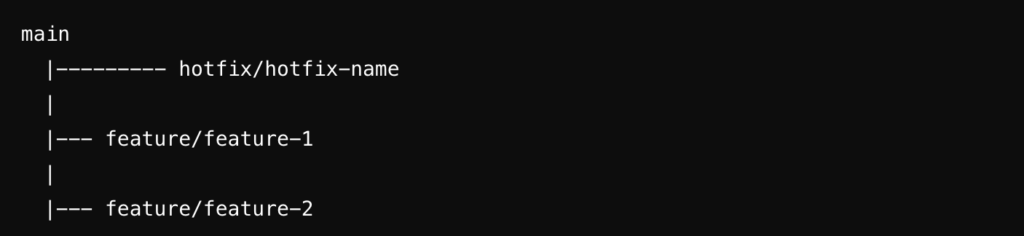
        • Main Branch: The ‘main‘ branch should be kept production-ready at all times, as releases are frequent and driven by immediate needs.
        • Feature Branches: Use ‘feature/feature-name‘ branches for each new feature or bug fix.
        • Hotfix Branches: Given the nature of immediate releases, hotfix branches (‘hotfix/hotfix-name‘) should be used for critical issues identified after a release.
      • Merging Strategy:
        • Merge completed feature branches directly into ‘main‘ via PRs after thorough QA. The simplicity of the project structure allows for this direct approach.
        • Hotfix branches should be merged into ‘main‘ immediately after the issue is resolved and tested.
      • Releasing Strategy:
        • Releases are tagged directly on the main branch as soon as they pass QA (v1.0.1, v1.0.2).
        • Consider using lightweight tags for interim builds or QA releases, and annotated tags for official client releases.
  • main: Production-ready, frequently updated branch.
  • feature/feature-x: Feature development branches.
  • hotfix/hotfix-name: Branches created to fix critical issues immediately after a release.
  • Multi-Client Product with Different Versions
    • Project Characteristics:
      • Clients: Multiple clients on different versions of the product.
      • Teams: Several teams working on various product areas.
      • Release Strategy: Versioned releases tailored to individual clients.
    • Recommended Git Practices:
      • Branching Strategy:
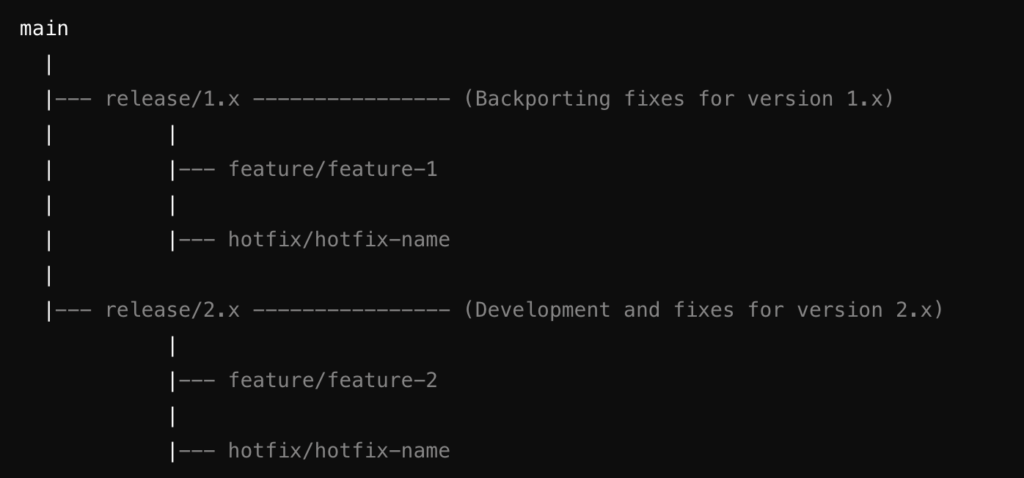
        • Main Branch: Use the ‘main‘ branch as the latest stable version of the product.
        • Version Branches: Maintain long-lived branches for each major version (‘release/1.x, release/2.x‘). These branches allow you to backport fixes or enhancements to clients on older versions.
        • Feature Branches: Each new feature or improvement should be developed in a feature branch (‘feature/feature-name‘) from the target version branch.
      • Merging Strategy:
        • Features are merged into the respective version branch via PRs. If a feature is applicable to multiple versions, cherry-pick the commits across the relevant branches.
        • Hotfixes should be merged into the version branch and, if necessary, forward-ported to newer versions.
      • Releasing Strategy:
        • Tag releases on the appropriate version branch (v1.5.0, v2.3.0) before deploying to clients.
        • Use tags and branches to manage client-specific customizations, if necessary, by creating branches like ‘client/client-name‘ from the relevant version branch.
  • main: Latest stable version of the product.
  • release/1.x, release/2.x: Long-lived branches for different versions of the product.
  • feature/feature-x: Features developed for specific versions.
  • hotfix/hotfix-name: Hotfixes applied to specific versions.
  • SaaS Product with a Single Codebase for Multiple Clients
  • Project Characteristics:
    • Clients: Multiple clients using the same codebase.
    • Teams: Multiple teams contributing to the product.
    • Release Strategy: Continuous deployment with feature toggles or configurations for client-specific customizations.
  • Recommended Git Practices:
    • Branching Strategy:
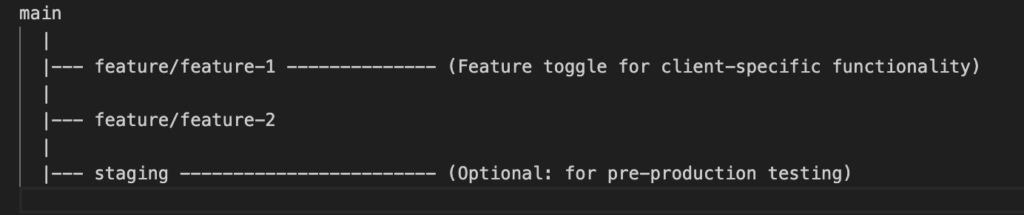
      • Main Branch: Use ‘main‘ for the latest production-ready code. Given the continuous deployment model, the main branch should always be stable and ready for release.
      • Feature Branches: Develop features in isolated ‘feature/feature-name‘ branches, using feature toggles or flags to manage client-specific functionality.
      • Environment Branches: Optionally, use branches like ‘staging‘ or ‘pre-production‘ for testing in environments that mimic production.
    • Merging Strategy:
      • Merge feature branches into main after testing and code review, ensuring all feature toggles or client configurations are correctly implemented.
      • Use environment branches for additional testing stages if your deployment pipeline requires it.
    • Releasing Strategy:
      • Deploy directly from the ‘main‘ branch using automated CI/CD pipelines.
      • Tag major releases for easier rollback (v3.0.0, v3.1.0), and use feature flags to manage rollout across different clients.
  • main: Single codebase ready for production deployment.
  • feature/feature-x: Branches for feature development, often managed with feature toggles.
  • staging: Optional branch for additional testing before production deployment.

General Git Best Practices

  • Commit Often and Meaningfully: Make frequent, small commits with descriptive messages to improve traceability and collaboration.
  • Use Pull Requests: Even for small teams, PRs encourage code reviews and discussion, leading to higher code quality.
  • Rebase with Caution: While rebasing keeps a linear commit history, avoid it on public branches to prevent conflicts.
  • Automate Testing: Integrate automated tests into your Git workflow to catch issues early and maintain code quality.
  • Documentation: Maintain clear documentation on your branching and release strategy to ensure all team members follow the same practices.

Well I hope above gives teams trying set up a repository management strategy to match their project / product, some guidelines.

Advance Javascript : Lazy Loading

In my previous articles I explained optimization patterns such as deboucing and throttling, in this article let’s do a deep dive into lazy loading , which defers the loading of resources until they are actually needed. This article will walk you through a simple example of implementing lazy loading in a TypeScript web application.

What is Lazy Loading?

Lazy loading is a design pattern commonly used to delay the initialization of objects until the point at which they are needed. In the context of web development, this often refers to loading resources like images, scripts, or modules only when they are required, rather than at the start of the application. This can significantly reduce initial load times and improve overall performance.

Project Overview

We will create a web page with a button. When the button is clicked, a module containing a heavy computation function will be loaded and executed. This example uses TypeScript and native ES modules to achieve lazy loading.

Setting Up the Project

  • Project Structure
lazy-loading-example/
├── dist/
│   ├── index.html
│   ├── app.js
│   └── lazyModule.js
├── src/
│   ├── index.html
│   ├── app.ts
│   └── lazyModule.ts
├── tsconfig.json
└── package.json
  • Initialize the Project
npm install typescript --save-dev
npx tsc --init
  • Configure TypeScript

Edit ‘tsconfig.json ‘to target ES6 and use ESNext modules:

{
  "compilerOptions": {
    "target": "es5",
    "module": "esnext",
    "outDir": "./dist",
    "strict": true,
    "esModuleInterop": true,
    "skipLibCheck": true,
    "forceConsistentCasingInFileNames": true
  },
  "include": ["src/**/*"]
}

Writing the Code

  • Create HTML File

Create ‘src/index.html‘ with a button and script tag

<!DOCTYPE html>
<html lang="en">
<head>
  <meta charset="UTF-8">
  <meta name="viewport" content="width=device-width, initial-scale=1.0">
  <title>Lazy Loading Example</title>
</head>
<body>
  <h1>Lazy Loading Example</h1>
  <button id="loadButton">Load Module</button>
  <script type="module" src="./app.js"></script>
</body>
</html>
  • Create Lazy Module

Create ‘src/lazyModule.ts‘ which contains a heavy task function:

export const performHeavyTask = () => {
  console.log('Performing a heavy task...');
  // Simulate a heavy task
  for (let i = 0; i < 1e7; i++) {}
  console.log('Heavy task completed.');
};
  • Create Main Application File

Create ‘src/app.ts‘ to handle button click and load the module

const loadButton = document.getElementById('loadButton') as HTMLButtonElement;

loadButton.addEventListener('click', async () => {
  const module = await import('./lazyModule.js');
  module.performHeavyTask();
});

Compile and Run

  • Compile the TypeScript files
npx tsc
  • Serve the Application

Use a static file server to serve the files. Here’s a quick way to do it using ‘http-server

npm install -g http-server
http-server dist
  • Open in Browser

Open your browser and navigate to http://localhost:8080 (or the port http-server provides). Click the “Load Module” button to see the lazy loading in action. The performHeavyTask function from lazyModule will be dynamically imported and executed, demonstrating lazy loading.

Conclusion

Lazy loading is an effective way to optimize web application performance by loading resources only when they are needed. In this example, we’ve seen how to implement lazy loading in a TypeScript web application using native ES modules. This technique can be extended to other resources like images and scripts to further enhance your application’s performance.

By adopting lazy loading, you can ensure that your web applications are both efficient and responsive, providing a better experience for your users

For complete source – https://github.com/IndikaMaligaspe/advance-javascrips/tree/master/topics/performance-optimization

Advance Javascript: Throttling

In my previous article I went through a performance optimization strategy called debouncing, in this article let’s go through an effective technique to manage the frequency of function execution – throttling. We’ll explore what throttling is, why it’s useful, and how to implement it with examples from both a console application and a web application using TypeScript.

What is Throttling?

Throttling is a technique used to ensure that a function is executed at most once in a specified period. This is particularly useful in scenarios where an event fires multiple times in quick succession, like keystrokes, window resizing, or scroll events. By throttling, we can control the execution frequency of a function, improving performance and user experience.

Why Use Throttling?

Imagine a scenario where you have a function that updates the UI based on user scroll events. Without throttling, the function could be called numerous times per second, potentially degrading performance. Throttling ensures that the function is called at most once every specified period, reducing the workload and improving efficiency.

Throttling in a Console Application

Let’s start with a simple example in a console application using Node.js. We’ll create a throttled function that logs a message only once every 2 seconds while the user types.

TypeScript Example:

import readline from 'readline';

type Throttle = <T extends(...args:any[]) => void> (func:T, limit: number) => (...args: Parameters<T>) => void;

const throttle : Throttle = (func, limit) => {
    let lastFunc: NodeJS.Timeout | undefined;
    let lastRan: number;

    return function (this: unknown, ...args: Parameters<typeof func>){
        const context = this;
        if(!lastRan) {
            func.apply(context, args);
            lastRan = Date.now();
        } else {
            if(lastFunc) clearTimeout(lastFunc);
            lastFunc = setTimeout(() => {
             if((Date.now() - lastRan >= limit)){
                func.apply(context, args);
                lastRan = Date.now();
             }
            }, limit);
        }
    };
}

const rl = readline.createInterface({
    input: process.stdin,
    output: process.stdout
});

const handleKeystroke = throttle((input: string) => {
    console.log('Keystroke is :', input.trim())
}, 2000);

console.log(' Start Typing :');
rl.on('line', handleKeystroke)

In this example, the handleKeystroke function logs the input at most once every 2 seconds, regardless of how fast you type and press Enter.

Throttling in a Web Application

Now, let’s look at an example in a web application. We’ll throttle a function that handles input events on a search field, ensuring the search function is only called at most once every 300 milliseconds.

HTML:

<!DOCTYPE html>
<html lang="en">
<head>
  <meta charset="UTF-8">
  <meta name="viewport" content="width=device-width, initial-scale=1.0">
  <title>Throttling Example</title>
</head>
<body>
  <input type="text" id="searchInput" placeholder="Type to search..." />
  <script src="app.js"></script>
</body>
</html>

TypeScript (app.ts):

First, install TypeScript and configure it if you haven’t already

npm install typescript --save-dev
npx tsc --init

Now, here’s the TypeScript code for the web application

const throttle = <T extends (...args: any[]) => void>(func: T, limit: number) => {
  let lastFunc: ReturnType<typeof setTimeout>;
  let lastRan: number | undefined;
  return function (this: unknown, ...args: Parameters<T>) {
    const context = this;
    if (!lastRan) {
      func.apply(context, args);
      lastRan = Date.now();
    } else {
      if (lastFunc) clearTimeout(lastFunc);
      lastFunc = setTimeout(() => {
        if ((Date.now() - lastRan!) >= limit) {
          func.apply(context, args);
          lastRan = Date.now();
        }
      }, limit - (Date.now() - lastRan!));
    }
  };
};

const handleInput = throttle((event: Event) => {
  const target = event.target as HTMLInputElement;
  console.log('Search query:', target.value);
}, 300);

const searchInput = document.getElementById('searchInput') as HTMLInputElement;
searchInput.addEventListener('input', handleInput);

Explanation

  • Type Declaration
    • Throttle‘: A type for the throttle function which ensures the input function func is only called once every limit milliseconds.
  • Throttle Function
    • throttle‘ takes a function func and a limit limit in milliseconds.
    • Uses ‘lastFunc‘ to store the timeout ID and ‘lastRan‘ to store the timestamp of the last execution.
    • Checks if ‘lastRan‘ is undefined (first run) and executes ‘func‘.
    • If not the first run, clears any previous timeout and sets a new timeout to execute func after the remaining time until ‘limit‘ has passed
  • HTML and TypeScript Integration
    • The input field in the HTML triggers the throttled ‘handleInput‘ function
    • The ‘handleInput‘ function logs the search query at most once every 300 milliseconds

Conclusion

Throttling is a powerful technique to control the execution frequency of functions in JavaScript, ensuring they are called at most once in a specified period. By applying throttling in both console and web applications, you can significantly improve performance and user experience. Whether you’re managing user input, scroll events, or resize events, throttling ensures that your functions are executed efficiently and only when necessary.

For complete source – https://github.com/IndikaMaligaspe/advance-javascrips/tree/master/topics/performance-optimization

Advance Javascript: Debouncing

When writing applications in javascript, we rarely consider performance, however as the user base or application usage increases performance becomes a huge bottleneck for growth. One powerful technique to manage the frequency of function execution is debouncing. In this post, we’ll explore what debouncing is, why it’s useful, and how to implement it with examples from both a console application and a web application.

What is Debouncing?

Debouncing is a technique used to ensure that a function is only executed after a certain amount of time has passed since it was last invoked. This is particularly useful in scenarios where an event fires multiple times in quick succession, like keystrokes, window resizing, or scroll events. By debouncing, we can limit the number of times the function is called, improving performance and user experience.

Why Use Debouncing?

Imagine a search input field that sends a request to a server every time a user types a character. Without debouncing, a request would be sent for every keystroke, potentially overwhelming the server with unnecessary requests. Debouncing ensures that the request is only sent after the user has stopped typing for a specified period, reducing the number of requests and improving efficiency.

Example 1: Console application

Let’s start with a simple example in a console application using Node.js. We’ll create a debounced function that logs a message only after the user stops typing for 1 second.

First, install the ‘readline‘ module if you haven’t already:

npm install @types/node

Here’s the TypeScript code:

import * as readline from 'readline';

// Declare debounce type separately
type Debounce = <T extends (...args: any[]) => void>(func: T, wait: number) => (this: unknown, ...args: Parameters<T>) => void;

const debounce: Debounce = (func, wait) => {
  let timeout: NodeJS.Timeout | undefined;
  return function (this: unknown, ...args: Parameters<typeof func>) {
    const context = this;
    if (timeout) clearTimeout(timeout);
    timeout = setTimeout(() => func.apply(context, args), wait);
  };
}

const rl = readline.createInterface({
  input: process.stdin,
  output: process.stdout
});

const handleInput = debounce((input: string) => {
  console.log('Executing command:', input.trim());
}, 1000);

console.log('Type a command and press Enter:');
rl.on('line', handleInput);

In the above example the the ‘handleInput’ function gets called only after 1 second after the user stops typing, allowing the application to reduce the unnecessary executions each time the user is typing.

Now, let’s look at an example in a web application. We’ll debounce a function that handles input events on a search field, ensuring the search function is only called after the user stops typing for 300 milliseconds.

HTML:

<!DOCTYPE html>
<html lang="en">
<head>
  <meta charset="UTF-8">
  <meta name="viewport" content="width=device-width, initial-scale=1.0">
  <title>Debouncing Example</title>
</head>
<body>
  <input type="text" id="searchInput" placeholder="Type to search..." />
  <script src="app.js"></script>
</body>
</html>

JavaScript (app.js):

function debounce(func, wait) {
  let timeout;
  return function (...args) {
    const context = this;
    clearTimeout(timeout);
    timeout = setTimeout(() => func.apply(context, args), wait);
  };
}

const handleInput = debounce((event) => {
  console.log('Search query:', event.target.value);
}, 300);

document.getElementById('searchInput').addEventListener('input', handleInput);

Conclusion:

Debouncing is a simple yet powerful technique to control the execution frequency of functions in JavaScript. By applying debouncing in both console and web applications, you can significantly improve performance and user experience. Whether you’re managing user input, scroll events, or resize events, debouncing ensures that your functions are executed efficiently and only when necessary. In my next article I will go into debouncing in a react application using useCallback hook and lodash ‘debounce’

For complete source – https://github.com/IndikaMaligaspe/advance-javascrips/tree/master/topics/performance-optimization

Authentication Middleware with JWT in Node.js

In any website or web application, ensuring that users are who they claim to be and protecting sensitive data from unauthorized access is crucial . One popular method for implementing authentication in Node.js is using JSON Web Tokens (JWT) and custom middleware. In this article, lets explore how to create a middleware that authenticates users using JWT.

What is JWT?

JWT (JSON Web Token) is an open standard for securely transmitting information between parties as a JSON object. This information is digitally signed, ensuring its integrity and authenticity. JWT is commonly used for authentication and authorization purposes.

A JWT is composed of three parts:

  • Header: Contains metadata about the token, such as the type of token (JWT) and the signing algorithm used (e.g., HMAC SHA256).
  • Payload: Contains the claims, which are statements about an entity (typically, the user) and additional data. There are three types of claims: registered, public, and private.
    • Registered claims: Predefined claims like iss (issuer), exp (expiration time), sub (subject), and aud (audience).
    • Public claims: Custom claims defined, such as user roles.
    • Private claims: Claims agreed upon between parties using the JWT.
  • Signature: Used to verify the token’s integrity and authenticity. It is created by encoding the header and payload using Base64Url, concatenating them with a dot, and signing the resulting string with a secret key using the specified algorithm.

A JWT typically looks like:

eyJhbGciOiJIUzI1NiIsInR5cCI6IkpXVCJ9.eyJzdWIiOiIxMjM0NTY3ODkwIiwibmFtZSI6IkpvaG4gRG9lIiwiaWF0IjoxNTE2MjM5MDIyfQ.SflKxwRJSMeKKF2QT4fwpMeJf36POk6yJV_adQssw5c

Setting Up the Project

Before we dive into the middleware, let’s set up a basic Node.js project with Express.

  • Initialize a new Node.js project:
mkdir auth-middleware
cd auth-middleware
npm init -y
  • Install necessary packages:
npm install express jsonwebtoken body-parser
  • Create a basic Express server:
// server.js
const express = require('express');
const bodyParser = require('body-parser');
const jwt = require('jsonwebtoken');

const app = express();
app.use(bodyParser.json());

const PORT = process.env.PORT || 3000;

app.listen(PORT, () => {
    console.log(`Server is running on port ${PORT}`);
});

Creating the Middleware

Next lets create the middleware that will intercept and handle authentication in our application

  • Create the middleware:
// middleware/auth.js
const jwt = require('jsonwebtoken');

const authenticateToken = (req, res, next) => {
    const authHeader = req.headers['authorization'];
    const token = authHeader && authHeader.split(' ')[1];

    if (token == null) return res.sendStatus(401); // If no token, unauthorized

    jwt.verify(token, process.env.ACCESS_TOKEN_SECRET, (err, user) => {
        if (err) return res.sendStatus(403); // If invalid token, forbidden
        req.user = user;
        next(); // Proceed to the next middleware or route handler
    });
};

module.exports = authenticateToken;
  • Protecting routes using the middleware:
// server.js
const express = require('express');
const bodyParser = require('body-parser');
const jwt = require('jsonwebtoken');
const authenticateToken = require('./middleware/auth');

const app = express();
app.use(bodyParser.json());

const PORT = process.env.PORT || 3000;

// Dummy user for demonstration
const user = { id: 1, username: 'testuser' };

// Route to login and generate a token
app.post('/login', (req, res) => {
    const username = req.body.username;

    if (username !== user.username) {
        return res.status(403).send('User not found');
    }

    const accessToken = jwt.sign(user, process.env.ACCESS_TOKEN_SECRET);
    res.json({ accessToken });
});

// A protected route
app.get('/protected', authenticateToken, (req, res) => {
    res.send('This is a protected route');
});

app.listen(PORT, () => {
    console.log(`Server is running on port ${PORT}`);
});

Generating and Verifying JWTs

When a user logs in, for us to verify the user, we need to generate the JWT and verify that user is having a valid token

  • Generate a JWT:

In the /login route, we create a token using ‘jwt.sign()

const accessToken = jwt.sign(user, process.env.ACCESS_TOKEN_SECRET);
  • Verify a JWT:

In the middleware, we use ‘jwt.verify()‘ to check the token’s validity

jwt.verify(token, process.env.ACCESS_TOKEN_SECRET, (err, user) => {
    if (err) return res.sendStatus(403);
    req.user = user;
    next();
});

Environment Variables

In order to keep our security keys for access token generation hidden from public , lets store our key in a .env file in the server and load that in our application when needed

Create a ‘.env‘ file in the project root:

ACCESS_TOKEN_SECRET=secret_key

Load these variables in the application using ‘dotenv‘:

npm install dotenv
// server.js
require('dotenv').config();

Conclusion

By implementing custom middleware with JWT, we can secure our Node.js applications with a robust authentication mechanism. This approach ensures that only authenticated users can access protected routes, enhancing the overall security of our application.

Understanding How WebSockets Work: A Deep Dive

As a follow up to my previous project example of using Socket.io , I wanted to do a deep dove in to WebSockets and the core behind WebSockets. In today’s web-driven world, real-time communication is becoming increasingly essential. Whether it’s for live chat applications, real-time notifications, or collaborative tools, traditional HTTP protocols fall short due to their request-response nature. WebSockets, however, offer a solution by enabling full-duplex communication channels over a single TCP connection. This article explores how WebSockets work and the principles behind them, providing you with a comprehensive understanding of this powerful technology.

So What Are WebSockets?

WebSockets are a protocol providing full-duplex communication channels over a single, long-lived TCP connection. Unlike HTTP, which follows a request-response model, WebSockets allow for bidirectional communication between the client and server, enabling real-time data exchange with minimal latency.

The WebSocket Handshake

The WebSocket communication starts with a handshake, initiated by the client. The client sends an HTTP request to the server to upgrade the connection from HTTP to WebSocket. Here’s what the initial handshake looks like

Client Request

GET /chat HTTP/1.1
Host: server.example.com
Upgrade: websocket
Connection: Upgrade
Sec-WebSocket-Key: x3JJHMbDL1EzLkh9GBhXDw==
Sec-WebSocket-Version: 13

Server Response

HTTP/1.1 101 Switching Protocols
Upgrade: websocket
Connection: Upgrade
Sec-WebSocket-Accept: HSmrc0sMlYUkAGmm5OPpG2HaGWk=
  • Upgrade Header: Indicates that the client wishes to upgrade the connection to a WebSocket.
  • Connection Header: Indicates that the connection should be upgraded.
  • Sec-WebSocket-Key: A base64-encoded random value generated by the client, used for security purposes.
  • Sec-WebSocket-Accept: A response from the server, which is a hashed value generated from the Sec-WebSocket-Key and ensures the handshake integrity.

If the server supports WebSockets, it responds with a ‘101 Switching Protocols‘ status code, and the connection is upgraded.

Establishing the Connection

Once the handshake is complete, the connection is established, and both the client and server can send messages to each other freely. Unlike HTTP, where the client must initiate every request, WebSockets allow for server-initiated messages, enabling real-time data push.

WebSocket Frames

Data sent over WebSocket is transmitted in frames. There are different types of frames, such as text frames, binary frames, ping frames, and pong frames. Each frame consists of a header and a payload

  • FIN: Indicates if this is the final fragment in a message.
  • Opcode: Defines the type of frame (e.g., text, binary, close, ping, pong).
  • Mask: Indicates if the payload data is masked (client-to-server frames must be masked).
  • Payload Length: Length of the payload data.
  • Payload Data: The actual message data being transmitted.

Example: Real-Time Chat Application

To illustrate how WebSockets work in practice, let’s build a simple real-time chat application using Node.js and the WebSocket library

Server Code

const WebSocket = require('ws');

const server = new WebSocket.Server({ port: 8080 });

server.on('connection', (socket) => {
    console.log('A user connected');

    socket.on('message', (message) => {
        console.log('Received:', message);
        // Broadcast the message to all connected clients
        server.clients.forEach((client) => {
            if (client !== socket && client.readyState === WebSocket.OPEN) {
                client.send(message);
            }
        });
    });

    socket.on('close', () => {
        console.log('A user disconnected');
    });
});

console.log('WebSocket server is running on ws://localhost:8080');

Client Code

<!DOCTYPE html>
<html>
<head>
    <title>WebSocket Chat</title>
</head>
<body>
    <input type="text" id="message" placeholder="Enter your message">
    <button onclick="sendMessage()">Send</button>
    <div id="chat"></div>

    <script>
        const socket = new WebSocket('ws://localhost:8080');

        socket.onopen = () => {
            console.log('Connected to the server');
        };

        socket.onmessage = (event) => {
            const chat = document.getElementById('chat');
            const message = document.createElement('div');
            message.textContent = event.data;
            chat.appendChild(message);
        };

        socket.onclose = () => {
            console.log('Disconnected from the server');
        };

        function sendMessage() {
            const input = document.getElementById('message');
            const message = input.value;
            socket.send(message);
            input.value = '';
        }
    </script>
</body>
</html>

Why WebSockets

  • Low Latency: Provides real-time updates with minimal delay.
  • Efficient: Reduces overhead by maintaining a single, persistent connection.
  • Bidirectional Communication: Allows for server-initiated messages.
  • Scalability: Supports large-scale, real-time applications like chats, games, and collaborative tools.

Conclusion

WebSockets are a powerful tool for enabling real-time, bidirectional communication in web applications. By maintaining a persistent connection between the client and server, they allow for instant updates and efficient data exchange, which is crucial for modern interactive applications. Understanding the principles behind WebSockets and how they work will enable you to build more dynamic and responsive web applications, enhancing user experience and engagement.

The Power of WebSockets and Socket.io in Real-time Applications

In the age of real-time applications, our ability to provide instant updates to users is a significant advantage. Traditional HTTP protocols are not designed for persistent, real-time communication, which is where WebSockets come into play. WebSockets allow for full-duplex communication channels over a single TCP connection, making them ideal for applications requiring constant data exchange without the overhead of repeatedly opening and closing connections.

Socket.io, a JavaScript library, builds on top of WebSockets and offers additional capabilities like automatic reconnection, multiplexing, and broadcasting, making real-time application development more accessible and robust.

A Collaborative Google Sheets-Like Application

I recently worked on an exciting project where we developed a Google Sheets-like application for a logistic industry company, allowing multiple users to collaborate in real-time. The core feature was that any update to a cell would be instantly visible to all users. Moreover, when a user started editing a cell, it would be highlighted and locked for other users until the editing was complete.

Key Features Implemented:

  • Real-time Cell Updates: As one user updates a cell, all other users see the changes instantly.
  • Cell Locking Mechanism: The cell being edited is highlighted and locked for other users, preventing simultaneous edits.
  • Color Change Notification: The cell being edited changes color, indicating another user is working on it.

To achieve these features, we utilized WebSockets and Socket.io for real-time communication between the server and clients.

Usage of WebSockets and Socket.io

As WebSockets provide a persistent connection between the client and server, enabling real-time data exchange with minimal latency. This was crucial for an applications like ours where delays in updates could lead to conflicts or confusion among users.

Socket.io simplifies WebSocket implementation by handling the complexities of real-time communication, such as reconnection, event handling, and cross-browser compatibility. It also supports additional features like rooms and namespaces, which can be used to segment communication to specific groups of users.

Simplified Backend Code Implementation

Below is a simplified version of our backend code using Node.js and Socket.io

const express = require('express');
const http = require('http');
const socketIo = require('socket.io');

const app = express();
const server = http.createServer(app);
const io = socketIo(server);

let sheetsData = {}; // A placeholder for our sheet data storage, once completed this will be sent to our document db.

io.on('connection', (socket) => {
    console.log('A user connected');

    // Handling cell update
    socket.on('cellUpdate', (data) => {
        const { sheetId, cellId, newValue } = data;

        // Update the cell in our data store
        if (!sheetsData[sheetId]) {
            sheetsData[sheetId] = {};
        }
        sheetsData[sheetId][cellId] = newValue;

        // Notify all other users about the cell update
        socket.broadcast.to(sheetId).emit('cellUpdated', { cellId, newValue });
    });

    // Handling cell lock
    socket.on('lockCell', (data) => {
        const { sheetId, cellId } = data;
        
        // Notify all other users to lock the cell
        socket.broadcast.to(sheetId).emit('cellLocked', { cellId });
    });

    // Handling cell unlock
    socket.on('unlockCell', (data) => {
        const { sheetId, cellId } = data;
        
        // Notify all other users to unlock the cell
        socket.broadcast.to(sheetId).emit('cellUnlocked', { cellId });
    });

    // Joining a specific sheet room
    socket.on('joinSheet', (sheetId) => {
        socket.join(sheetId);
    });

    socket.on('disconnect', () => {
        console.log('A user disconnected');
    });
});

server.listen(3000, () => {
    console.log('Server is running on port 3000');
});

Conclusion

WebSockets and Socket.io have transformed the way we develop real-time applications. By enabling low-latency, persistent communication between clients and servers, these technologies allow us to build collaborative, interactive applications efficiently. The project described above demonstrates the power and flexibility of WebSockets and Socket.io in creating a seamless user experience for real-time collaboration.

By leveraging these tools, we were able to provide a robust solution that ensured all users remained synchronized, thus enhancing productivity and collaboration. Whether you’re developing a collaborative tool, a chat application, or any other real-time service, WebSockets and Socket.io are a good option and is worth mastering.

The frontend implementation for this will be given in a separate article with the full ReactJS code.